You can grant access to your staff to shop in our stores during a limited amount of time by creating an invitation. This can only be generated in our Makro Companion App.
Remember, if you want to provide your staff their own cards related to your company, you can find a quick how-to tutorial here.
If you just want to provide a temporary access, follow the steps below to create an invitation:
| STEPS FOR THE OWNER OF THE ACCOUNT | STEPS FOR THE GUEST | |
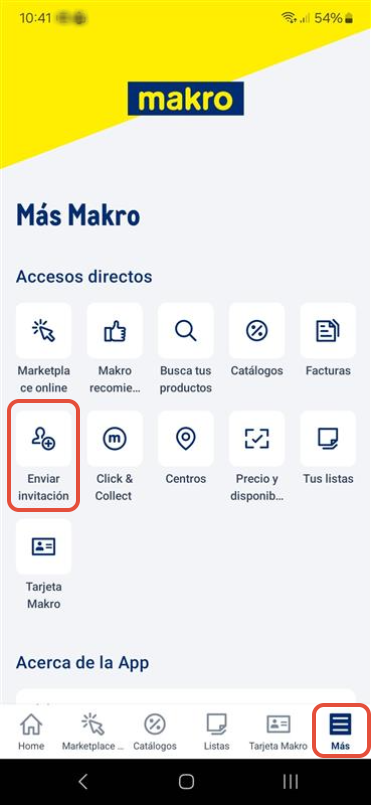 | 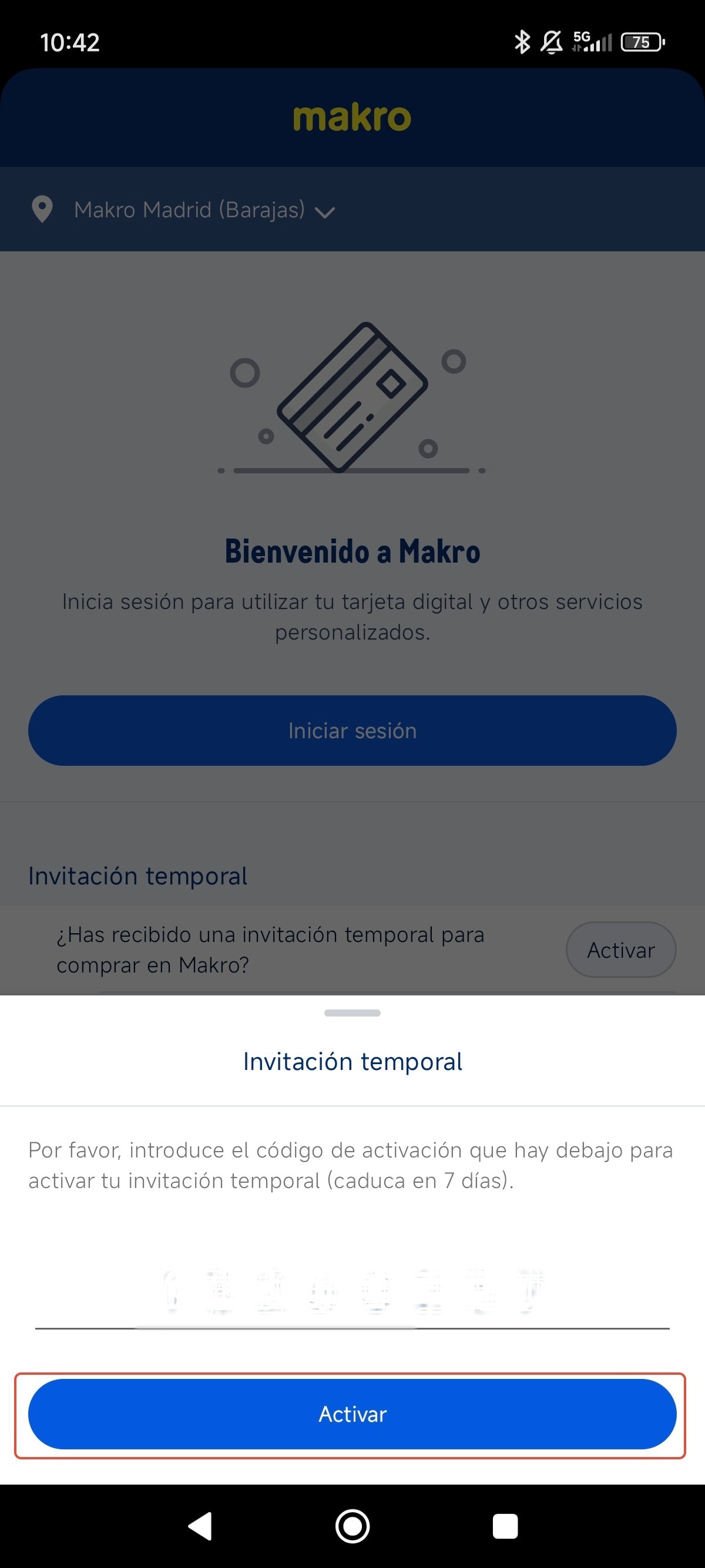 | |
| Log in on your app and select on the bar down below the option 'Más/More'. Then, select 'Enviar Invitación / Send invitation'. | ⚠️Is it mandatory to have the Makro Companion APP previously downloded and to have ready an user and password (digital account). Please, verify the message received from the person who wants to provide you a temporary invitation. You'll see a link. Please, click that link to start the process. If the message contains a number, please, remember it. Once you access to the link, you will be required to add the code number you saw in the previous screen. Once you introduce it, please press the blue 'Activar / Activate' button. | |
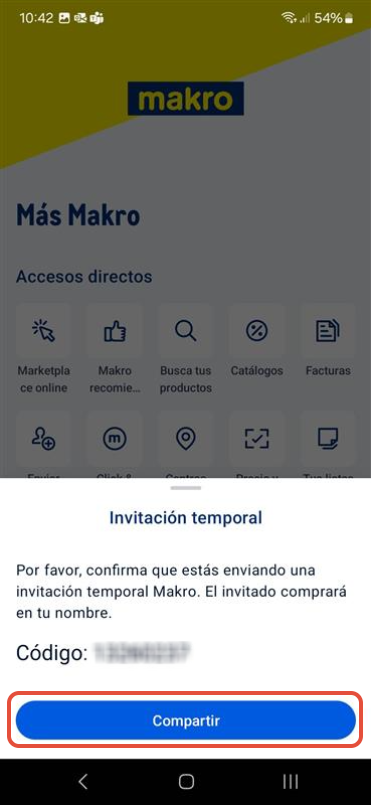 | 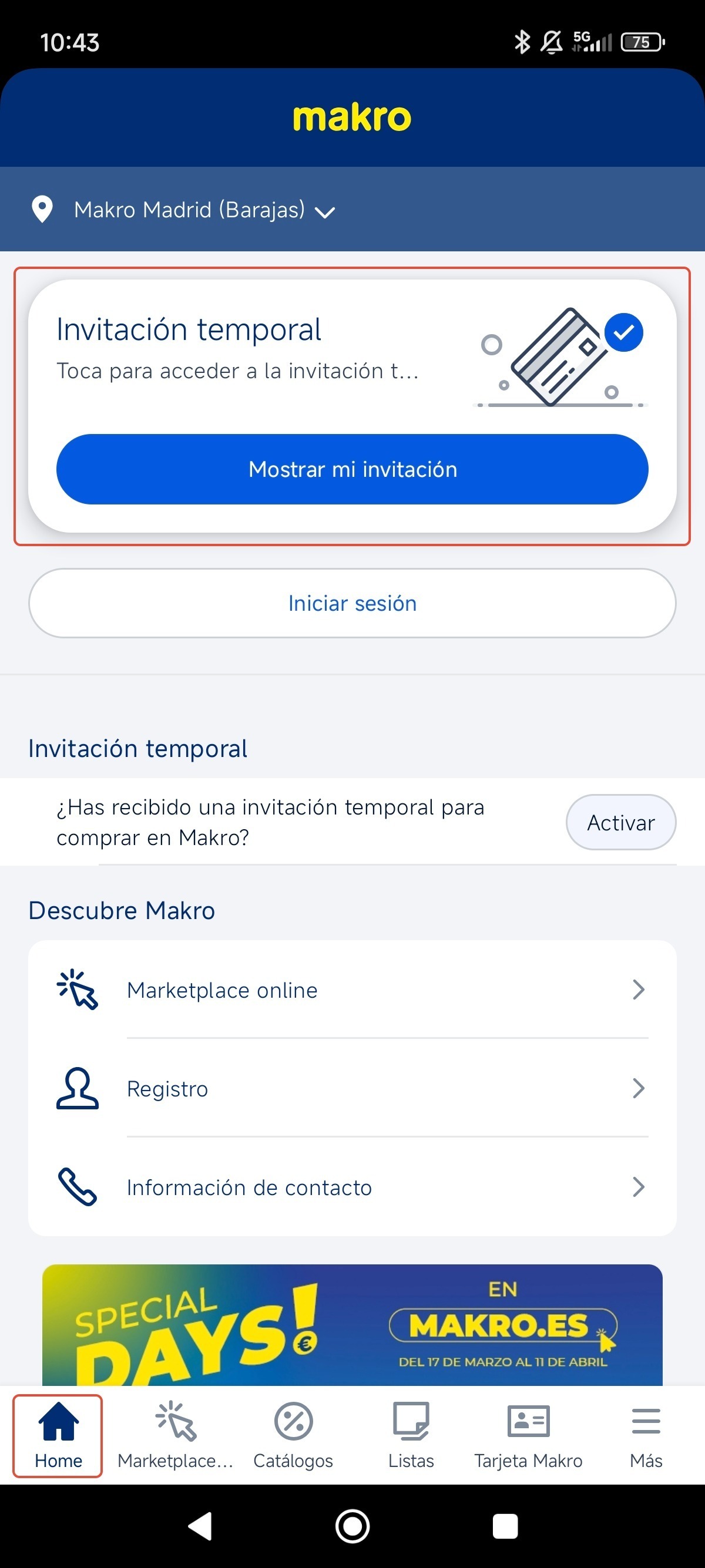 | |
| Now press 'Compartir / Share' and you will see diferent sharing options, chose one of your preference to comunicate to the person you want to send the invitation. Please, beware, some comunication options, such SMS, might have additional cost. We recomend mail or WhatsApp. Send the message and wait for the receiver to confirm you they have got their notification through the selected channel. | If you now access to the 'Home' area in the bottom menu, you will see your invitation available.Press 'Mostrar mi invitacion / show my invitation' to access to your temporary card. | |
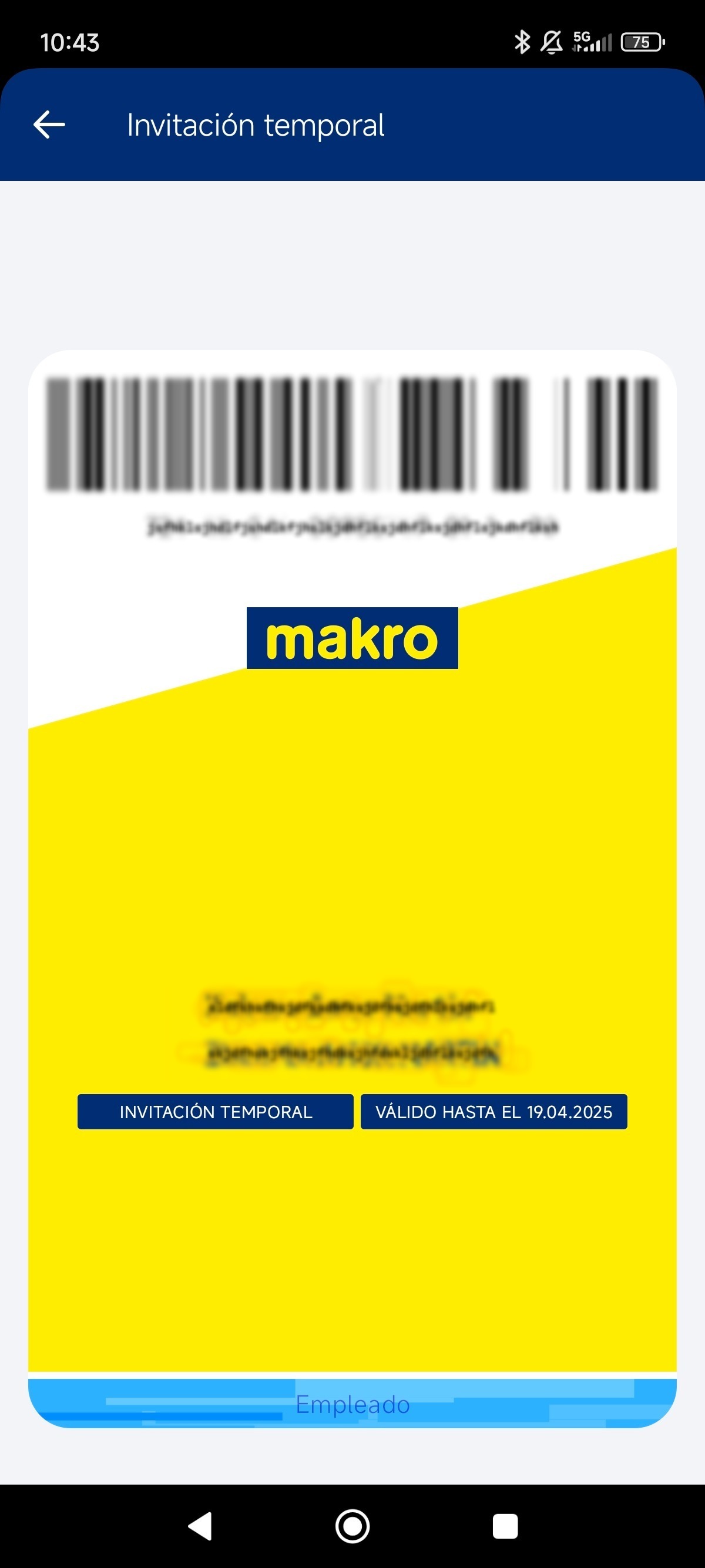 | ||
| You must show this card before paying in our stores to proceed. You will see the limit date of usage on it. |
Remember, if you need further information about your inquiry, you can contact us by calling 900 907 503 or through our contact section on our website https://www.makro.es/contacto-makro |
Was this article helpful?
That’s Great!
Thank you for your feedback
Sorry! We couldn't be helpful
Thank you for your feedback
Feedback sent
We appreciate your effort and will try to fix the article